
GTM Variable based on cookie
By default our banner will send datalayer events when consent has been made or changed. These can be used to connect to your tags to fire whenever there's a change in consent state.
If your website or application sends datalayer events to GTM these might execute before our banner can send its events, this might lead to a loss of data.
In this case we suggest to setup variables in GTM based on our first party cookie.
1. Navigate to your Google Tag Manager account and go to the Variables page.
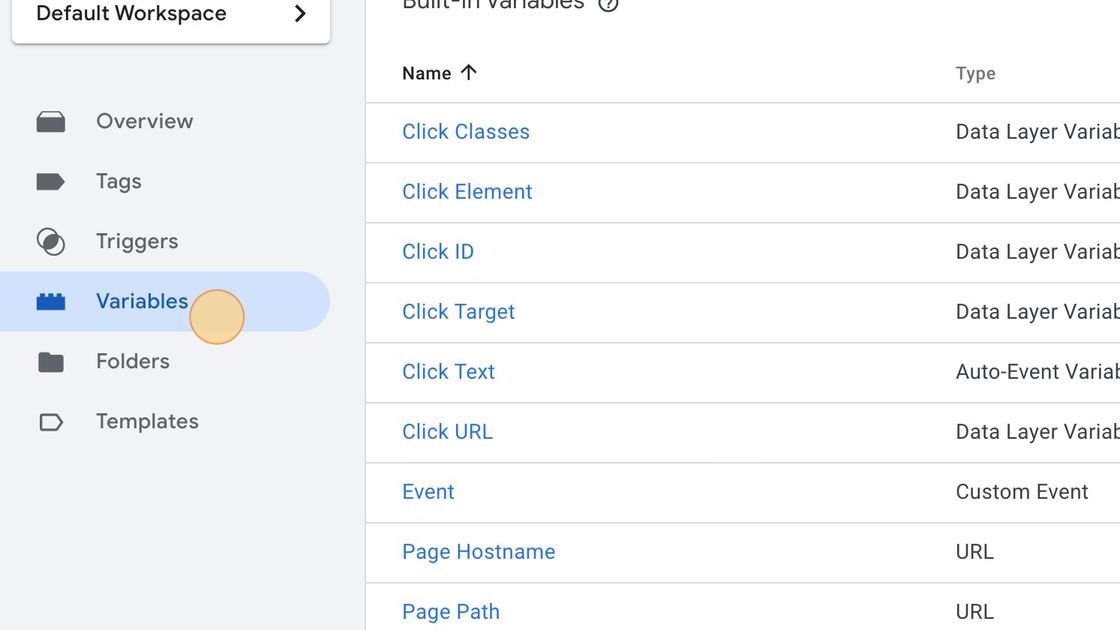
2. Click "Variables"
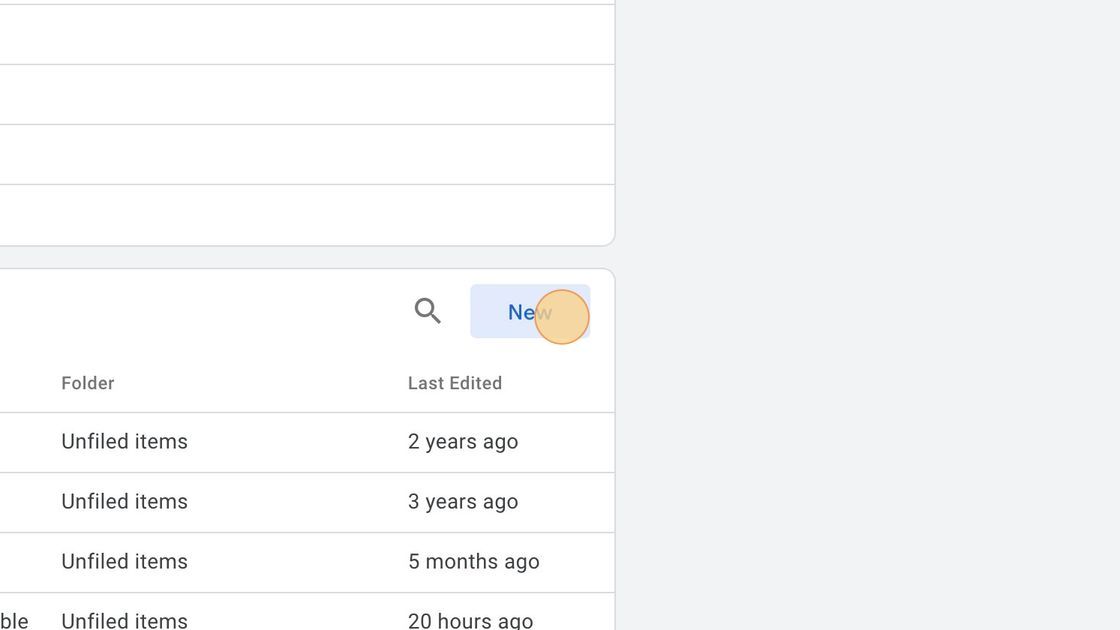
3. Click "New"
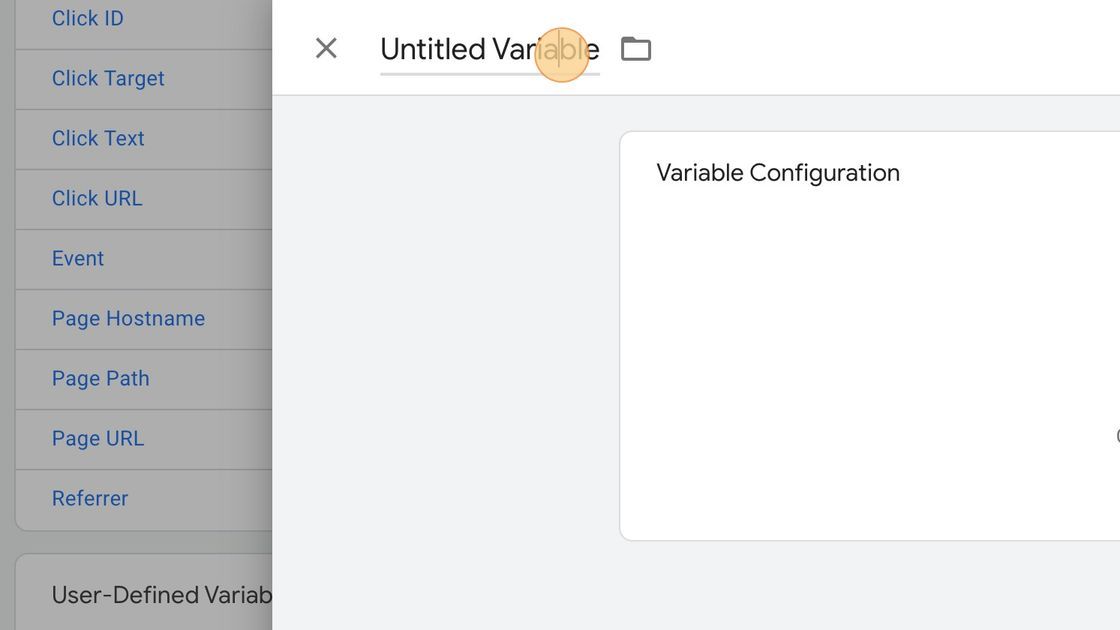
4. Double-click "Untitled Variable"
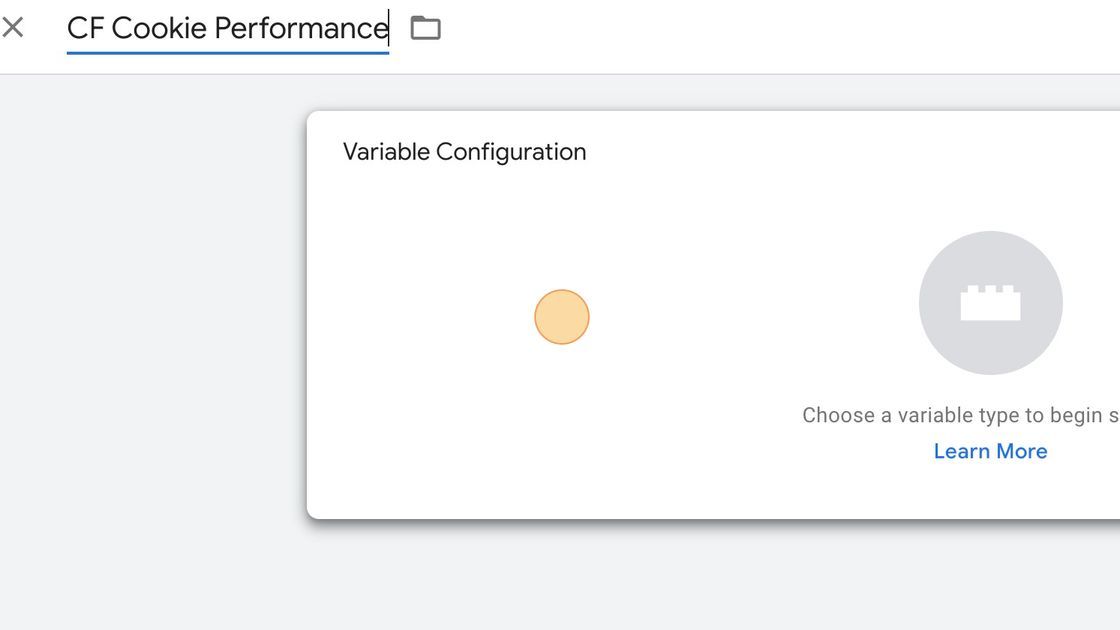
5. Type "CF Cookie Performance"
6. Click here.
7. Click "Custom Javascript"
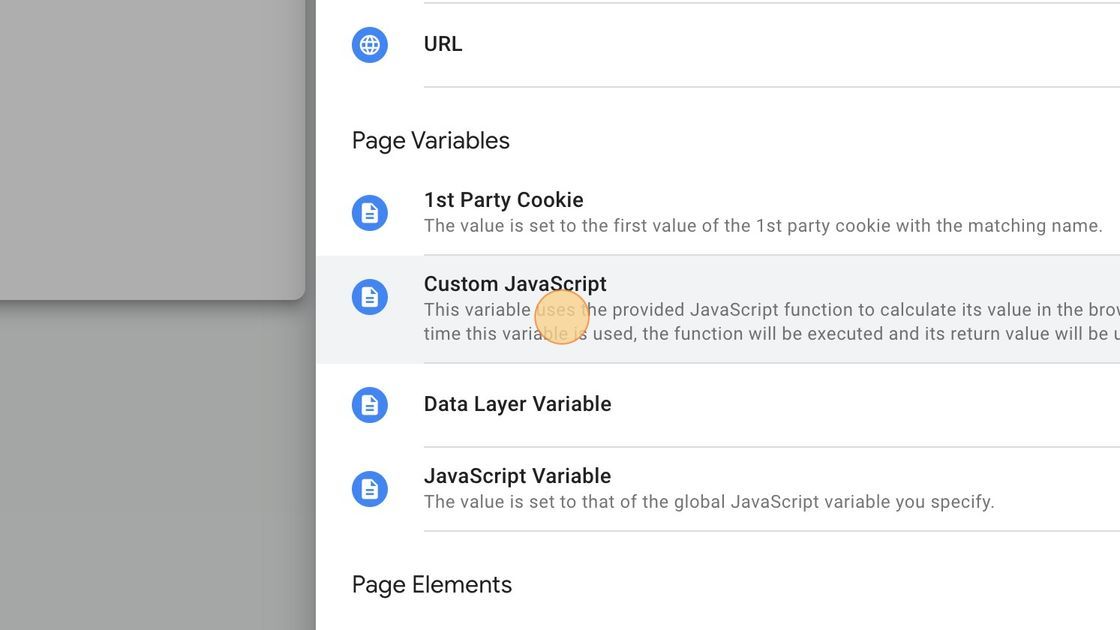
8. Click here.
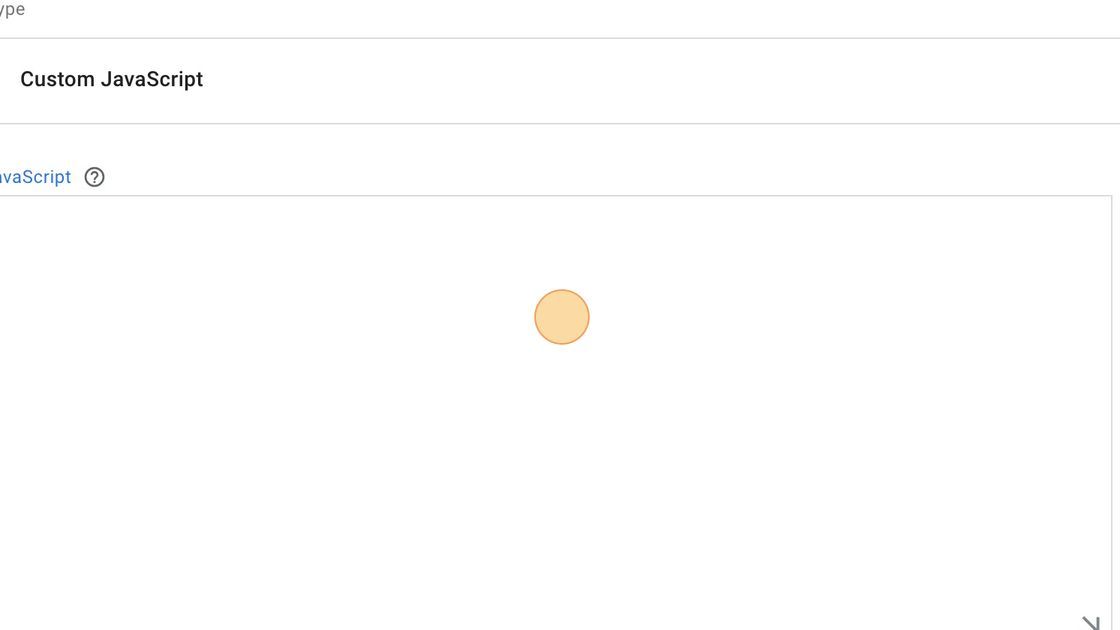
9. Past the Javascript code. In this example i'm using the performance category.
JavaScript
function() {
  var name = "cookiefirst-consent=";
  var decodedCookie = decodeURIComponent(document.cookie);
  var cookieArray = decodedCookie.split(";");
  for (var i = 0; i < cookieArray.length; i++) {
    var c = cookieArray[i];
    while (c.charAt(0) === " ") {
      c = c.substring(1);
    }
    if (c.indexOf(name) === 0) {
      var value = c.substring(name.length, c.length);
      if(!value) {
        return null;
      }

      try {
        value = JSON.parse(value);
        return !!value['performance'] || null;
      }catch(e) {
        return null;
      }
    }
  }

  return null;
}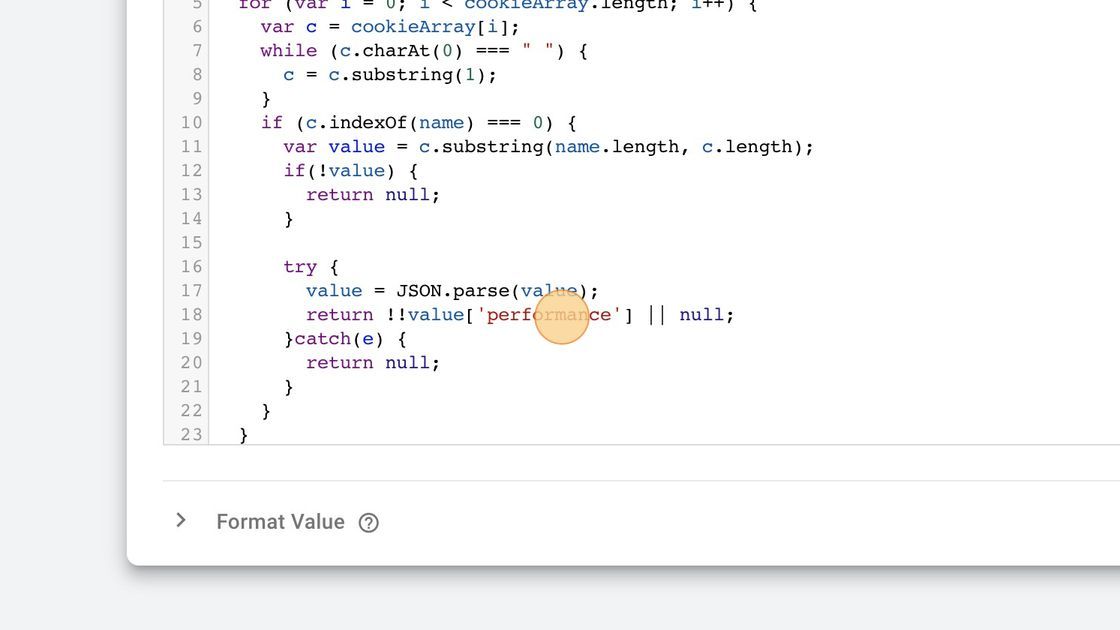
10. Change performance for any of the other categories. (advertising, functional, performance) If you are using Service based consent, lookup the service name in your cookiefirst domain settings.
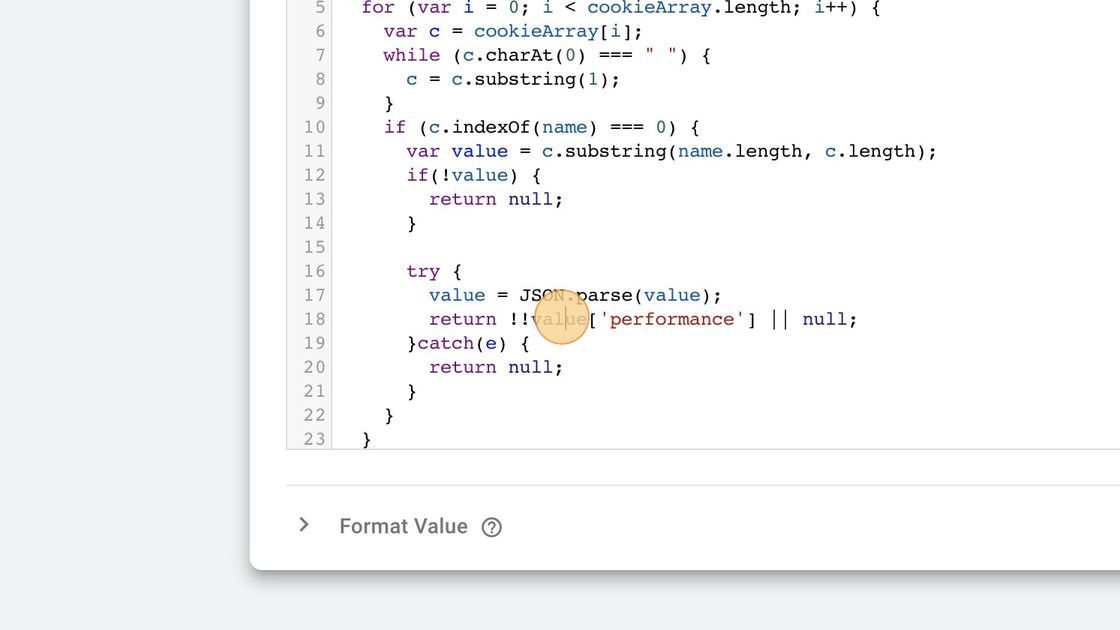
11. Click "Format Value"
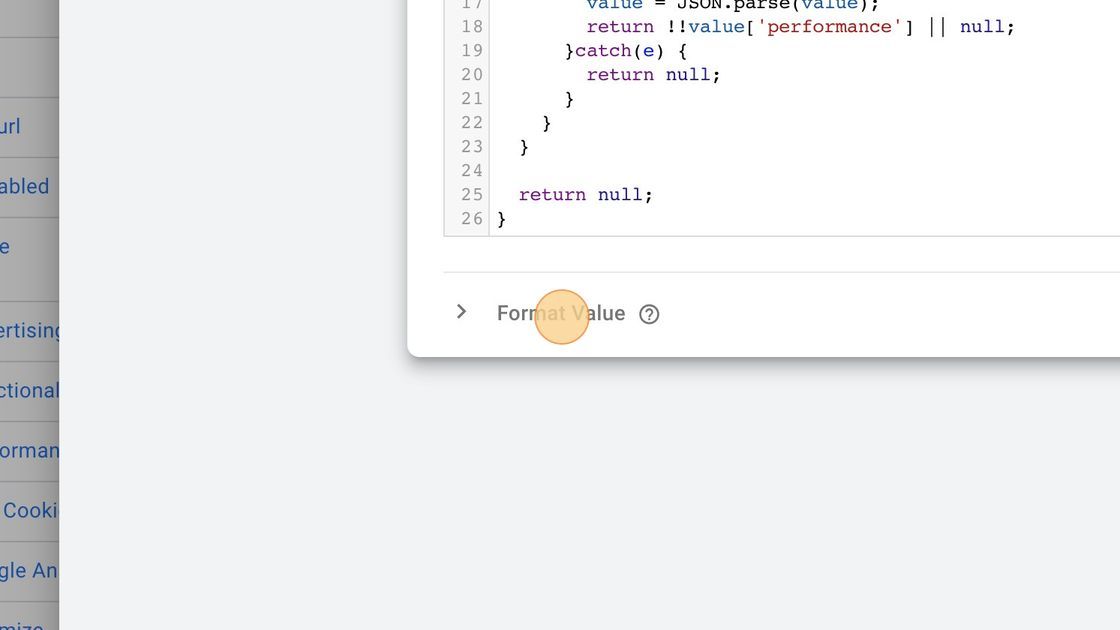
12. By default if no consent has been set or it's not accepted it will return null. You can convert this to another value.
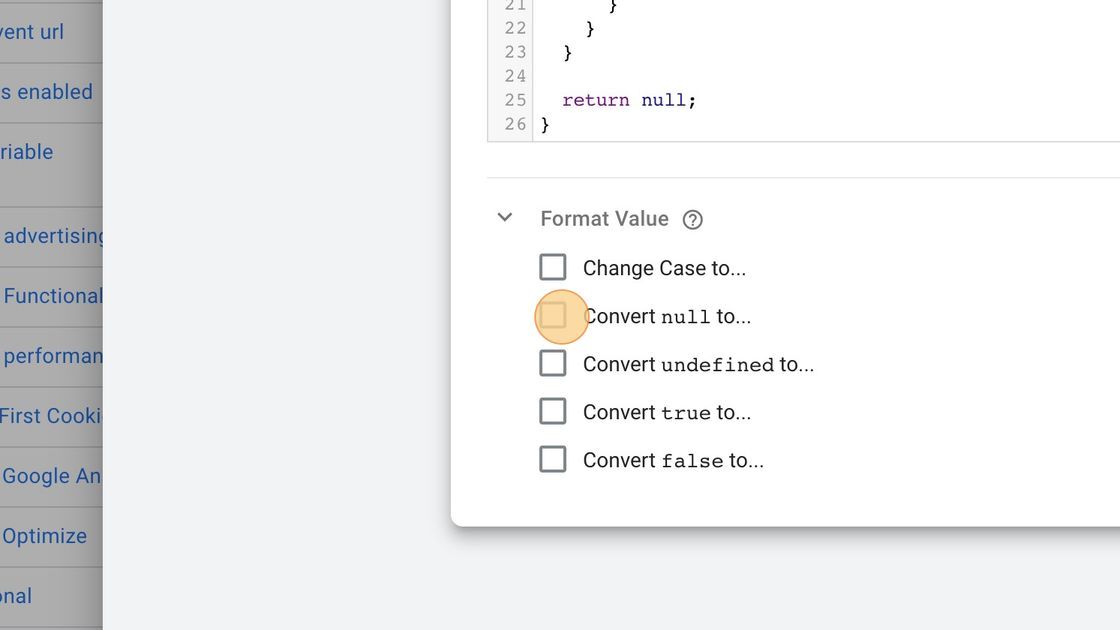
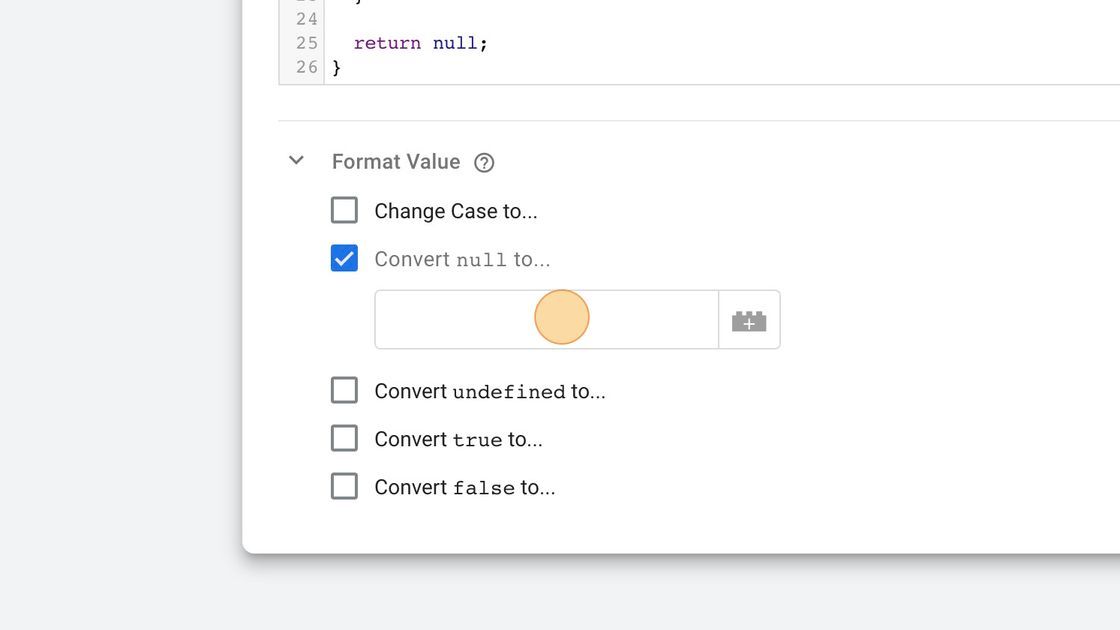
13. We convert it to false or denied.
14. Click "Save"
15. Now you can use this variable as the input for a trigger, checking for consent for the specific category or service depending on the setup.
16. If you would like to use this as input for updating the Consent Mode. you should also convert true to granted and false to denied.
Repeat this step for every category or service you'd like to use.